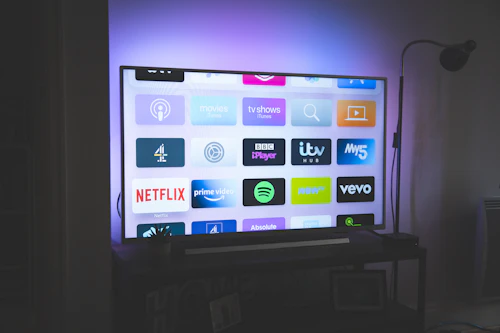
A Smart TV that won't connect to the internet is one of the most frustrating TV problems — especially with OTT subscriptions to Netflix, Amazon Prime, Disney+ Hotstar and JioCinema sitting unused. The good news is that most Smart TV internet connection problems can be fixed without calling a technician. Here are 10 solutions in order from simplest to most complex.
Fix 1: Restart Everything (Fixes 40% of Cases)
Turn off your Smart TV and router completely. Unplug both from power — not just standby. Wait 60 seconds. Plug the router back in first, wait for it to fully connect (all lights stable), then turn on the TV. This simple reset fixes WiFi connection problems in approximately 40% of cases by clearing temporary network state corruption on both devices.
Fix 2: Forget and Reconnect to WiFi
On your Smart TV: go to Settings → Network → WiFi → select your network → Forget. Then reconnect by selecting the network and entering your password fresh. This clears corrupted saved network credentials that can prevent connection even when the password hasn't changed.
Fix 3: Check Your Router's 2.4GHz vs 5GHz Band
Most home routers in India broadcast on both 2.4GHz and 5GHz bands. Some Smart TVs — particularly older models and budget TVs — only support 2.4GHz. If your router shows two networks (e.g., "HomeBroadband" and "HomeBroadband_5G"), try connecting to the 2.4GHz version (the one without the _5G suffix). Samsung, Mi and VU TVs are the most common brands with this issue.
Fix 4: Change DNS Settings to Google DNS
Many Smart TV internet problems are actually DNS failures — the TV connects to WiFi but can't resolve addresses. Fix: Settings → Network → IP Settings → DNS Setting → Manual → enter 8.8.8.8 (Google DNS). This resolves OTT app loading failures, YouTube not opening, and Netflix error codes in approximately 25% of cases.
Fix 5: Update the TV Firmware
An outdated TV firmware can cause WiFi connection drops and OTT app failures. Settings → Support → Software Update → Update Now. Connect via ethernet cable first if WiFi won't connect, or use a USB drive with the firmware downloaded from the manufacturer's website.
Fix 6: Factory Reset the TV
A factory reset clears all corrupted settings and app data. Settings → General → Reset (Samsung) / Settings → Advanced → Factory Data Reset (LG) / Settings → Device Preferences → Reset (Android TV/Google TV). You will need to set up the TV again, but this resolves most persistent software-caused WiFi issues.
Fix 7: Check for MAC Address Filtering on Router
If your router has MAC address filtering enabled, it will block any device not on the whitelist — including your TV. Check your router settings (usually at 192.168.1.1 in a browser) under Wireless Security or MAC Filtering. Either disable filtering or add your TV's MAC address (found in TV Settings → Network → Network Status).
Fix 8: Test with a Mobile Hotspot
Connect your TV to your phone's mobile hotspot (create a hotspot with the same name and password as your home WiFi for easiest testing). If the TV connects to the hotspot fine, your home router is the problem — not the TV. If it fails on the hotspot too, the TV's WiFi hardware needs checking.
Fix 9: Check for WiFi Module Hardware Failure
If the TV cannot detect any WiFi networks at all (the scan shows completely empty), the internal WiFi module has failed. This is a hardware issue requiring a technician. WiFi module replacement costs ₹1,200 – ₹1,800 and is completed at your home. More common in TVs over 4 years old or those that have experienced power surges.
Fix 10: Use a Wired Ethernet Connection
The most reliable fix if WiFi keeps dropping: connect your TV to the router via an ethernet cable. Most Smart TVs have an ethernet port. A ₹200 ethernet cable provides a faster and more stable connection than WiFi and eliminates WiFi hardware as a variable. If your TV works fine on ethernet but not WiFi, it confirms a WiFi module issue.
Tried all 10 fixes and still no luck? Call Urban TV Repair at 9326575236. Our technician will diagnose whether it is a TV hardware issue or a router/ISP problem — and fix it at your home in Kalyan, Dombivali, Ambernath, Thakurli or Badlapur. Rs.200 visit, 90-day warranty.
Need TV Repair in Kalyan or Dombivali?
Technician arrives in 30 minutes. Rs.200 home visit. 90-day warranty. 7 AM – 11 PM, 365 days.
📞 Call 9326575236Our TV repair services
LED TV repair · LCD TV repair · OLED TV repair · Smart TV repair · Android TV repair · Plasma TV repair
Areas we serve
TV repair in Kalyan · TV repair in Dombivali · TV repair in Ambernath · TV repair in Thakurli · TV repair in Badlapur


